Connecting to BCSC_BYOD_STAFF with Windows 11

Written by Chris Bradley
Updated at September 29th, 2026
Audience: Faculty, Staff, Students
System Preference: Windows 11
- Locate the network icon near the clock in the system tray. It will either be a globe icon, wireless icon or network icon.


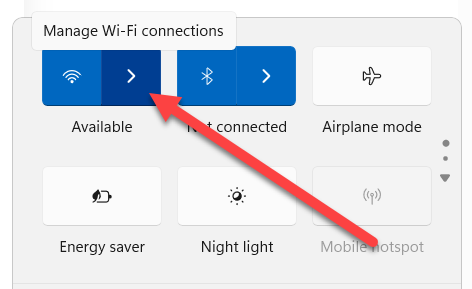
- Click on the network icon and pick the arrow next to the wireless icon.
- On the new screen that opens, click on BCSC_BYOD_STAFF and then click "Connect"

- In the new window that pops up type in your full BCSC email address in the username box and your current BCSC/Google password in the password box and click "OK".

- Another window will pop up asking you if you want to continue connecting? Click "Connect" on this window.

- At this point, you should be connected to the BCSC_STAFF_BYOD wireless network.
