IncidentIQ Guide (Login & Tickets)

Written by Nick Williams
Updated at July 21st, 2025
BCSC’s Ticketing System - IncidentIQ (iiQ)
How to access IncidentIQ:
Browser
-
You can access IncidentIQ via
- the “bcsc.k12.in.us bookmarks” folder in Google Chrome.
- typing the URL, “https://bcsc.incidentiq.com/”, into your browser.
- if you're on a Windows computer, you can open it through the icon on your desktop, as shown below.

- To log in to IncidentIQ, click the “BCSC Google SSO” button.

Mobile App
- From your device's app store, install “Incident IQ” by “Incident IQ, LLC”.

- Once in the app, type in “bcsc” for the district address, and once on the login screen tap the “BCSC Google SSO” button.

Navigating the homepage:
Video Walkthrough of IncidentIQ's homepage. (Duration: 3:31)

Entering a ticket:
Video Walkthrough on Creating a Ticket. (Duration: 1:39)
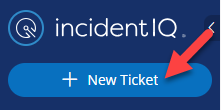
- Click on “New Ticket” in the top left corner.
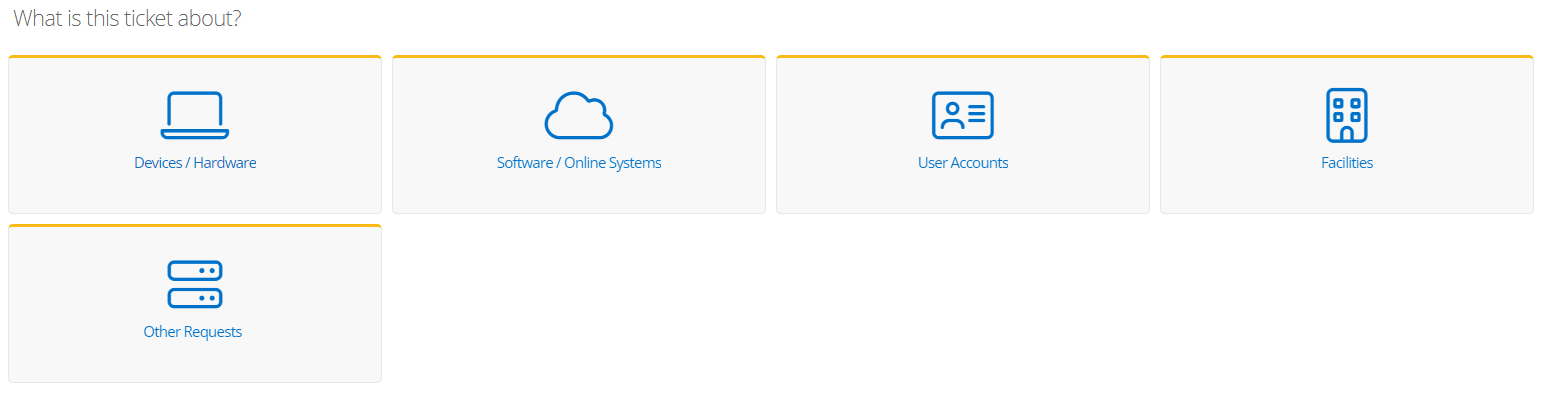
- Select what the issue is.
-
Search for the issue or select the icon of the issue.
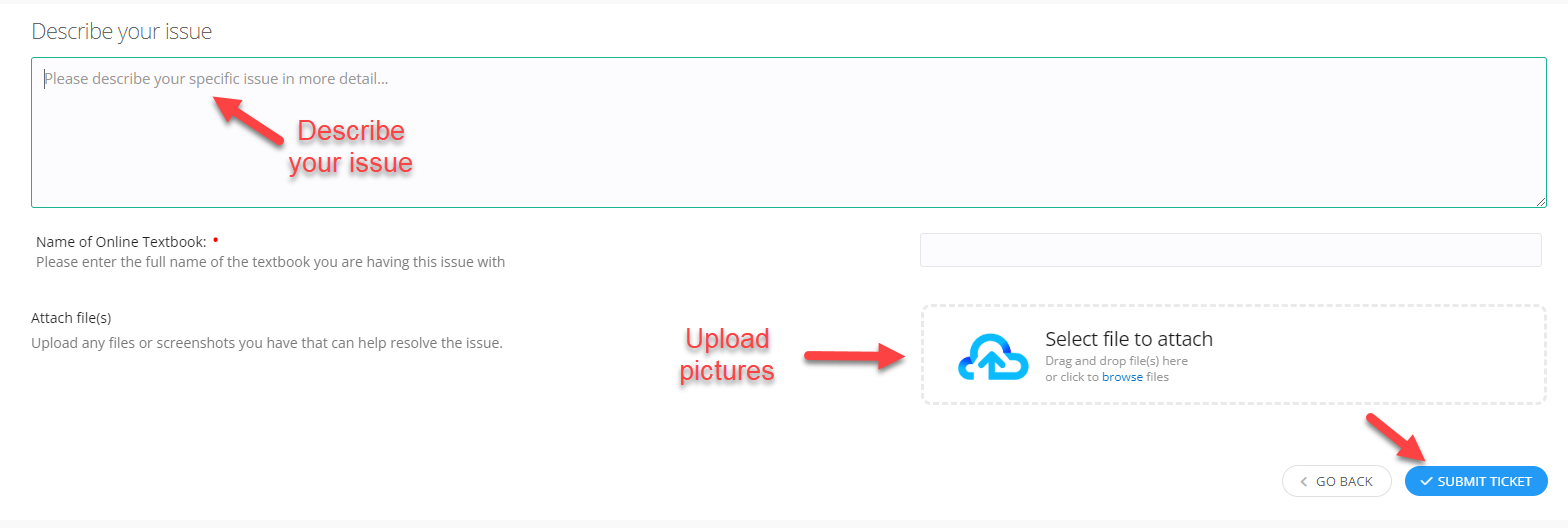
- Describe your issue in detail, upload pictures (easy from the app!), and select “Submit Ticket”.
Other important notes:
- The person working on the ticket may request a reply. You can reply to the email or through the website.
- You can enter a ticket by emailing it@bcsc.incidentiq.com for technology-related issues or facilities@bcsc.incidentiq.com for facilities-related issues.
- The more information you can provide regarding your issue, the quicker we can identify and resolve the problem.