New Employees | Technology Guide
Technology onboarding guide for new BCSC employees.

Written by Isaiah Estes
Updated at November 2nd, 2026
Table of Contents
Welcome to Bartholomew Consolidated School Corporation!
Account
- All BCSC employees will receive a Google account that provides access to email, WiFi, Incident IQ, Skyward, and more.
- Sign in to BCSC systems by selecting "Sign in with Google” when the option appears—no separate passwords required. Alternatively, if you cannot use the button, enter your BCSC email and password to log in.
Action Steps
If you have not already done so, please complete the required steps:
Devices
- Depending on your role, you may receive a BCSC-issued device.
- Check with your Building Support Techs to verify if your position includes a device and where to pick it up.
If you already have your device, select the device type below for instructions to get started using it:
Chromebook
BCSC uses PaperCut to manage printing to copiers and printers. Before you can print from a Chromebook, sign in to Mobility Print with your BCSC Google account.
- Open Print Menu
- Press Ctrl + P or click Print on any document or webpage.
- In the Destination drop-down menu, select "See more…"
- When prompted, click “Sign in with Google” and select your BCSC Google account.

- A list of available printers will appear. Printers with a green PaperCut icon next to them indicate you're signed in and can print to BCSC copiers/printers.

Windows Laptop
Task 1: Set Google Chrome as Your Default Browser
Ensure all links and PDF files open properly by completing these steps:
- Open Settings
- Click the Windows Search bar, type "Settings", and open the Settings app.
- Navigate to Apps → Default Apps.
- Locate and select Google Chrome.
- Click “Set default” and verify that Google Chrome is also set as the default application for PDF files.
Task 2: Sign in to PaperCut
You will need to sign in to PaperCut in two places.
-
First Location: Pop-up Window
- When the PaperCut pop-up window appears, click “Sign in with Google” and select your BCSC account.

-
Second Location: Google Chrome
- Open Google Chrome
- Press Ctrl + P
- In the destination, select “See More…”
- Select the “Sign in with Google” button.
- All district copiers and printers will now be available in your destination list.
Printers
- All staff have access to building copiers and are able to send print jobs to them using PaperCut.
- In some buildings, copiers use Print Release, meaning staff swipe their badge at the copier to release any print jobs they sent. Staff must register their badge the first time they use a copier. After that, they can swipe their badge to release any print jobs they’ve sent.
- The district is implementing this across all buildings, but not all buildings have been moved to it yet.
PaperCut Badge Swipe Instructions
PaperCut Badge Swipe Instructions
Audience: Staff
This article will guide you through the first-time setup for badge swipes and how to use them.
1. You’ll now see a new option on the copier’s home screen. It should be called “PaperCut MF” with a green square icon. You can either scan your badge using the badge reader or tap the “PaperCut MF” option.

2. You will see the screen below once you have selected the “PaperCut MF” option. Go ahead and scan your badge with the badge reader.

3. If this is your first time scanning your badge and you have not yet logged in to the “PaperCut MF” app on the copier, you will see a screen that says “Associate card”. Go ahead and enter your username (not your full email address, everything before the “@”) and your password. After you type in your username, tap the blue “Next” button on the keyboard. After you type in your password, tap the blue “Associate Card” button.

4. You will have successfully linked your account to your badge if you see the screen below.

5. After completing the previous step, you will be taken back to the login screen. You will no longer have to type in your credentials to log in, and you can now simply swipe your badge on the badge reader.

6. Once logged in, you will see this screen. This screen includes print release, copier device functions, and scan-to-Google Drive functionality. If you have already sent a print job, you will see a message at the top of the screen indicating that it is printing. You can select “Print All” if you know you want to print all currently stored jobs. Otherwise, hit the “Print Release” button.

7. After tapping the “Print Release” button, it will show this screen, which shows your active print jobs. You will need to select the print job(s) you want to print by checking the boxes next to them.

8. Once you have selected your desired print jobs, go ahead and hit print in the bottom right corner.
9. We are back at the main PaperCut interface screen, but now we are going to select “Device Functions”.

10. Selecting “Device Functions” takes you to this page. This is the page you will access to return to the copier's home screen. Go ahead and select the cyan “Use device functions” button.

11. Selecting “Use device functions” returns you to the copier’s main interface. The “Copy” and “Print/Scan to USB” functions will remain on the main copier interface, as the PaperCut interface does not include these features.

The copier will automatically log users out after a small period of inactivity. Still, it is a good practice to tap “Logout” in the top-right corner when you are done using the copier.
This concludes the guide for the first-time setup of badge swipes and how to use them. A guide on the first-time setup for scanning your documents directly to Google Drive is available here.
Please enter an IncidentIQ ticket if you need any further assistance.
Cybersecurity
Protecting company data starts with your inbox. Cybercriminals often use phishing emails (fake messages designed to steal information or money) to compromise networks.
- Spot a suspicious email? Click the orange fishhook icon in your email toolbar to report it.
- Unsure about an attachment? Do not open or download it. Alert your supervisor immediately.
How To Report Phishing
Reporting Phishing in Gmail
Audience: All Staff, Secondary Students
System Preferences: Laptop or Chromebook, any browser
GM5
Reporting Phishing
Phishing is the #1 way for criminals to try to get personal information or money by having you click, reply, or call through an email.
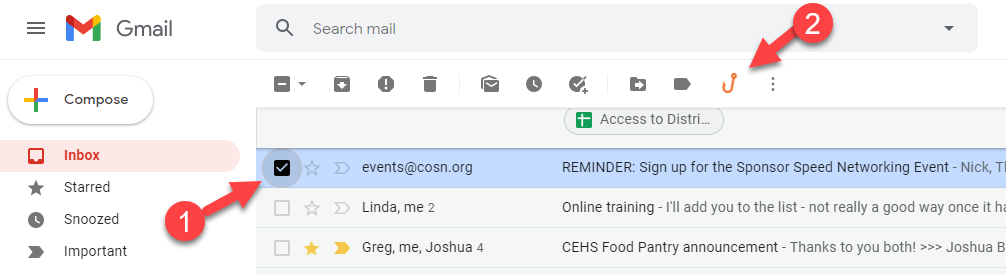
- Check the box next to the email and select the hook
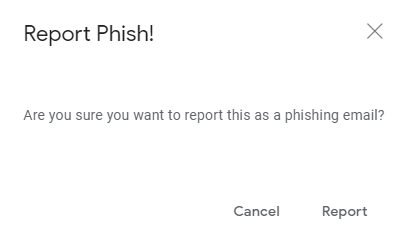
- Accept by clicking on Report
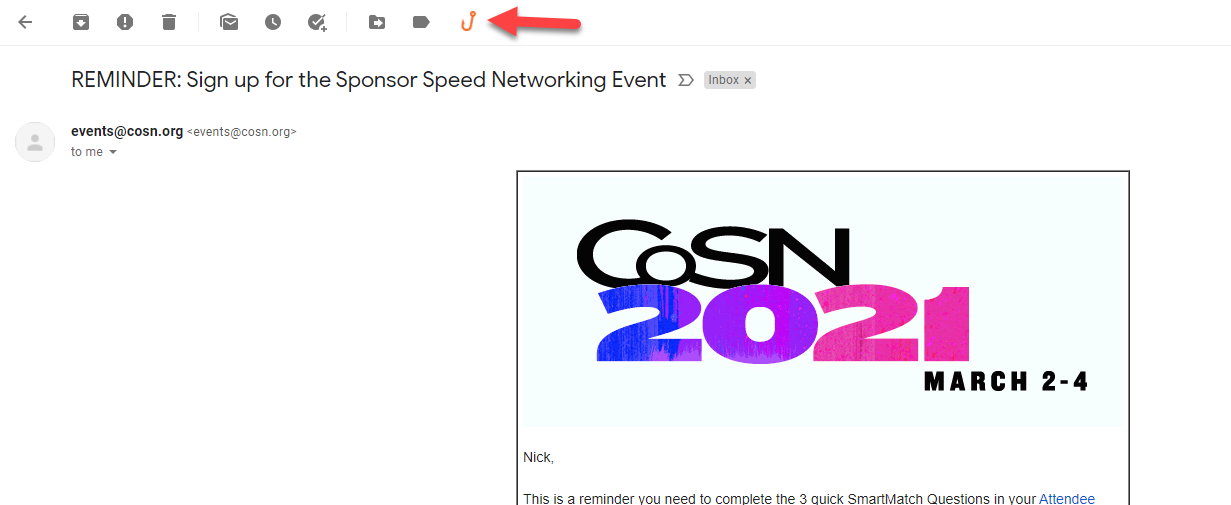
If you opened the email, follow the same steps
- Delete the Email after reporting!
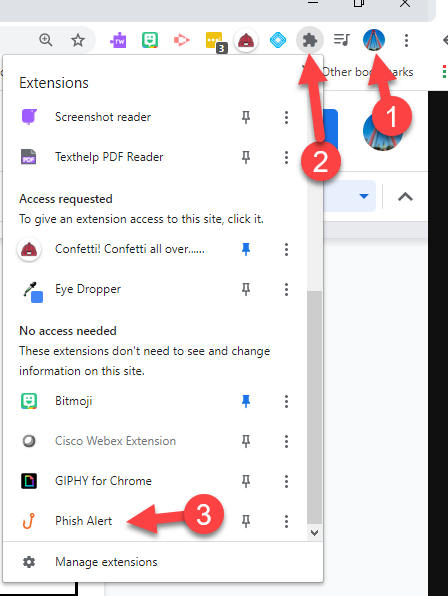
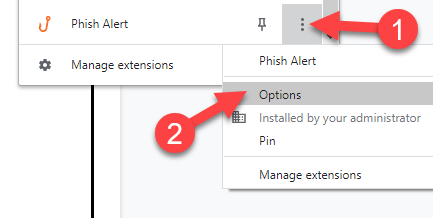
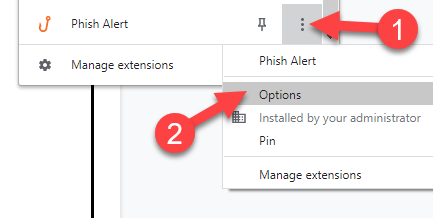
IF you don’t see the Phishing Hook, sign into Chrome, click on the grey puzzle piece, click on the 3 dots next to the hook and accept permissions
To report a phishing attempt in BCSC if you do not have the Phishing Alert Button:
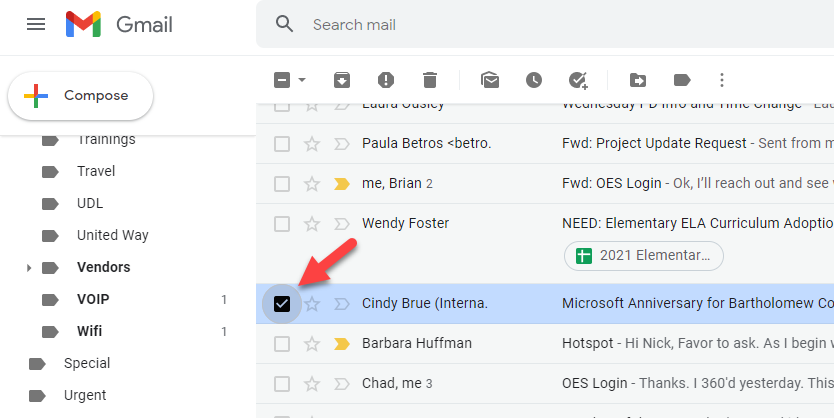
- From the inbox, select the phishing message(s)
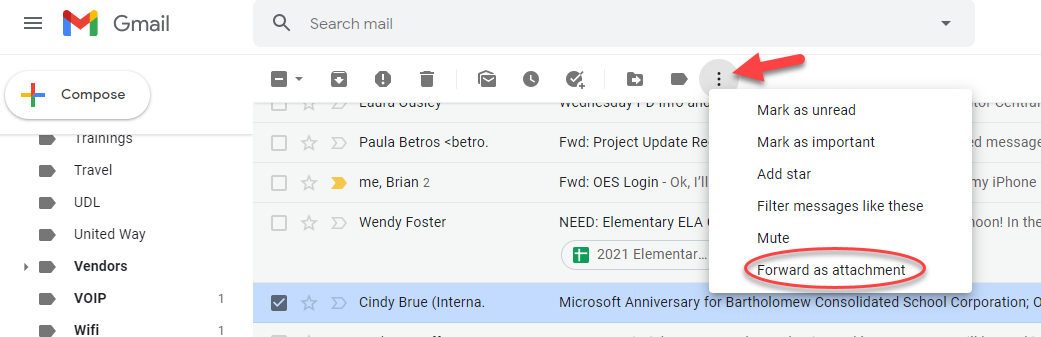
- Select the 3 vertical dots on the top of the inbox and select forward as attachment
- Send to phishing@bcsc.k12.in.us
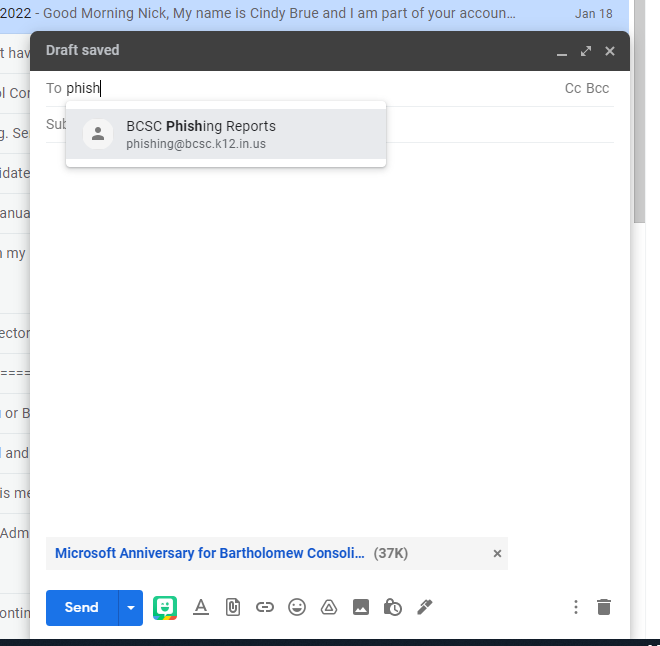
- Delete the message
Still need help? Click the following link to submit an IIQ Ticket
Audience: All Staff, Secondary Students
System Preferences: Laptop or Chromebook, any browser
Learning about Gmail for BCSC
Start Here!
Getting More Comfortable...
Hitting My Stride
Resources for all other questions
Last updated 2.23.2021
BCSC Cyber Security Training
BCSC Email Phishing
Internet
- In addition to the WiFi that BCSC devices automatically connect to, staff can use the Bring Your Own Device (BYOD) internet for personal devices.
- To connect a device, select “BCSC_BYOD_STAFF” and enter your BCSC Google account credentials.
For assistance, check out these how-to guides.
Technology Support
- BCSC uses an online Knowledge base, HelpJuice, accessible 24/7, with answers to common questions and how-to articles.
- Each building has assigned Building Support Techs who can provide assistance. Building Tech Support Teams
- For help with new accounts or technical issues, visit your building's Tech Office or submit a ticket through our online ticketing system, Incident IQ.
- Commonly used district links and resources can be found in the "Managed Bookmarks" folder on your Google Chrome bookmarks bar. Click the folder to view available links.

Missing the Managed Bookmarks folder?
If the Managed Bookmarks folder is missing from your bookmarks bar,
- Right-click anywhere on your bookmarks bar.
- Hover over “Show bookmark bar.”
- Select "Show Managed Bookmarks" to make the folder visible.
